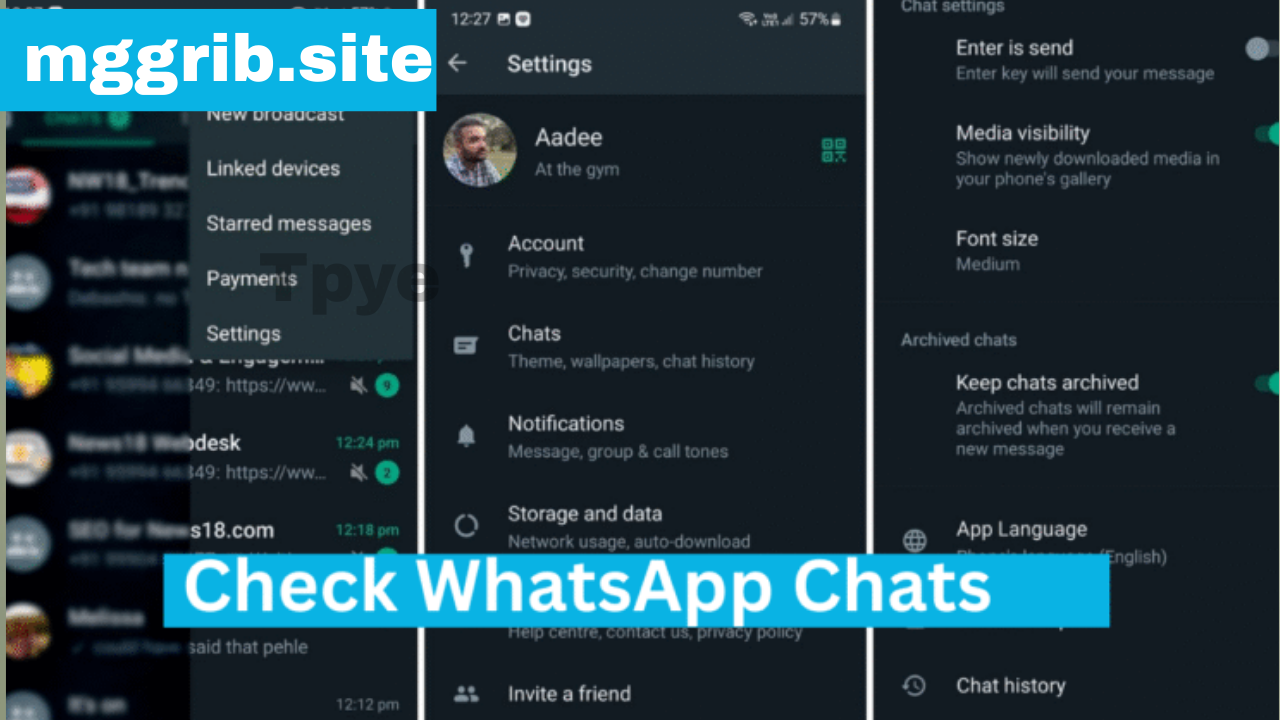
WhatsApp is one of the most popular messaging apps in the world, with billions of users relying on it daily for communication. From personal chats to business conversations, WhatsApp has become an essential tool for staying connected. However, many users often wonder: how can I check my WhatsApp chat history and details?
Whether you want to revisit old conversations, find important information, or simply manage your chats better, WhatsApp offers several options to view and export your chat history. In this article, we’ll explain everything you need to know about checking WhatsApp chats, chat details, and even tips to organize them efficiently.
Why Checking WhatsApp Chat History is Important
Before diving into the methods, let’s quickly understand why someone might want to check their chat history and details:
- 📌 Retrieve important information – addresses, phone numbers, or notes shared in chats.
- 📌 Business communication – checking client conversations and orders.
- 📌 Memories – revisiting old messages, photos, and videos.
- 📌 Proof or evidence – sometimes chats are needed as proof in personal or professional situations.
- 📌 Backup and safety – ensuring you don’t lose valuable data.
Knowing how to access and manage your WhatsApp chat history ensures you always stay in control of your information.
Method 1: Checking Chat History Directly on WhatsApp
The simplest way to check your chat history is directly within the WhatsApp app.
On Android & iPhone:
- Open WhatsApp on your phone.
- Go to the Chats tab.
- Scroll and tap on the conversation you want to open.
- Now you can scroll up to load older messages.
If you’re searching for something specific, you don’t need to scroll endlessly. WhatsApp has a search option:
- Open the chat.
- Tap on the three dots (Android) or chat name (iPhone).
- Select Search.
- Type the keyword, and WhatsApp will highlight matching results.
This is helpful when you need to quickly find a message shared months or even years ago.
Method 2: Viewing Chat Details
Every WhatsApp conversation has detailed information, including the number of messages exchanged, media files, and storage usage.
Steps to Check Chat Details:
- Open WhatsApp.
- Select the chat you want to check.
- Tap on the contact name or group title at the top.
- Here you’ll find:
- Profile details (name, number, and status).
- Media, Links, and Docs – showing all shared photos, videos, and documents.
- Starred messages – if you saved any important messages.
- Mute & Notification settings for that chat.
This feature is useful if you want a quick overview of everything you’ve shared with a person or group without scrolling through the entire conversation.
Method 3: Exporting WhatsApp Chats
If you need a complete copy of your chat, you can export it. This option creates a file containing the full conversation, which can be stored or shared.
How to Export a Chat:
- Open WhatsApp.
- Go to the chat you want to export.
- Tap on the three dots (Android) or chat name (iPhone).
- Select More > Export chat.
- Choose whether to include media (images, videos) or not.
- WhatsApp will generate a .txt file (with optional media files) that you can save or email.
This is extremely useful for keeping business records, proof of communication, or simply preserving personal memories.
Method 4: Checking Archived Chats
Sometimes, chats may disappear from your main list because they are archived. You can still check them easily.
- Scroll down to the bottom of the Chats screen.
- Tap Archived.
- Here you’ll find all your archived conversations.
If you want to restore any chat back to the main list, long press on it and select Unarchive.
Method 5: Checking Chat Backup
If you want to see whether your chats are being saved, you need to check your WhatsApp backup settings.
On Android:
- Open WhatsApp.
- Go to Settings > Chats > Chat Backup.
- Here you’ll see the last backup date and time.
On iPhone:
- Open WhatsApp.
- Go to Settings > Chats > Chat Backup.
- You can also choose Auto Backup frequency.
Checking your backup ensures your chat history is safe even if you lose your phone.
Method 6: Checking WhatsApp Web Chat History
If you use WhatsApp Web or Desktop App, you can also view your chat history there.
- Open web.whatsapp.com or the desktop app.
- Scan the QR code with your phone.
- Your entire chat history will appear on your computer.
This is useful for people who work on a PC and want to search or copy chat details more comfortably.
Method 7: Checking Group Chat Details
Group chats can become messy with hundreds of messages daily. Luckily, WhatsApp lets you check details easily:
- Open the group chat.
- Tap on the group name at the top.
- You’ll see:
- List of participants.
- Shared media and files.
- Group settings (admins, mute, notifications).
- Message statistics.
This helps you manage group conversations effectively.
Tips to Manage WhatsApp Chat History
Now that you know how to check chat history and details, here are some pro tips to organize it better:
✅ Use Search Frequently – saves time when finding old information.
✅ Star Important Messages – long-press any message and tap the star icon. Later, you can view it under “Starred Messages.”
✅ Clear Storage Regularly – go to Settings > Storage and Data > Manage Storage to delete unnecessary files and free up space.
✅ Use Labels (WhatsApp Business) – if you use WhatsApp Business, you can label chats for better organization.
✅ Keep Backups Updated – always ensure your chats are being backed up to Google Drive (Android) or iCloud (iPhone).
Common Questions (FAQ)
1. Can I recover deleted WhatsApp messages?
Yes, if you had a backup enabled before deleting the messages, you can restore them by reinstalling WhatsApp.
2. Can I check WhatsApp chat history without the app?
Yes, through WhatsApp Web or by exporting chats. However, you must be logged in to your account.
3. How far back can I see WhatsApp chats?
You can see messages as far back as your phone storage or backup allows. Some users have years of chat history stored.
4. Can someone else check my WhatsApp chat history?
No, unless they have access to your phone or WhatsApp Web session. Always secure your device with a password or fingerprint.
Final Thoughts
WhatsApp chat history holds valuable personal and professional information. Whether you want to find an old conversation, check details of shared files, or back up your important data, WhatsApp provides multiple options to manage everything efficiently.
By learning how to check WhatsApp chat history and details, you can save time, stay organized, and make sure you never lose track of your important conversations.
So, the next time you need to look back at an old memory, find a crucial detail, or organize your chats, use the methods we discussed—and you’ll have everything at your fingertips.
1 thought on “How to Check WhatsApp Chats History and Details”